
How to Identify Product Photo Colors with Image Palette
Use Image Palette as a starting point for reviewing photographed colors. Choose a representative image, connect swatches to visible product details, compare lighting, and turn supported…
THE EVERYDAY IMAGE WORKSPACE
Local by designSwitch a format, bring a set together, or find the colors within. A focused toolbox for designers, developers, and everyday makers.
Choose a local image and an output format. Your source stays yours; save the converted copy when it is ready.
Good to know: PNG, JPEG & WebP output. JPEG flattens transparency onto white. Up to 10 MiB per image and 16 million decoded pixels; decoding also depends on browser memory.
Use the 640 × 480 sample below. Select WebP, process it, then inspect the generated file in your browser. Use PNG when you need transparency. AVIF export and lossless compression are not included in this workspace.
Changing a format does not guarantee a smaller file. Compare the actual result with your original before replacing it.
Arrange local images in one PNG contact sheet. Set the columns and thumbnail size, then review the set in the order you selected it.
Good to know: Use 2–20 images, up to 20 MiB combined and 10 MiB per file. The image limit is 16 million decoded pixels. Browser memory can limit decoding before processing.
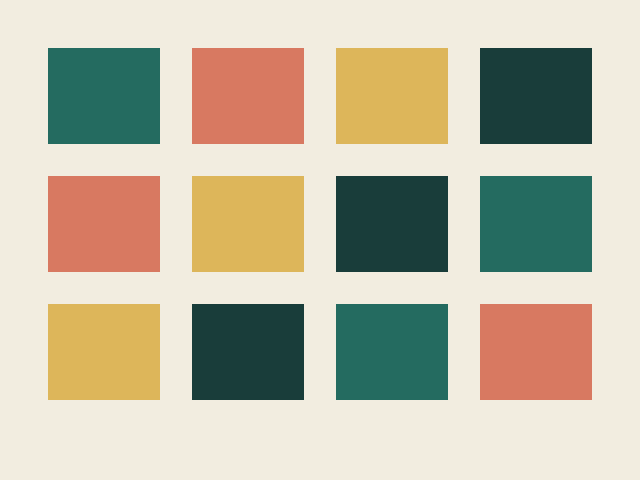
Download the three samples below. Select them together, set 3 columns and a thumbnail size of 256, then generate a sheet. Download the PNG, then open it to check the selection order and how the thumbnails fit their cells.
This is a contact sheet for review, not a layered design canvas. There is no archive download or editable layout document.
Extract an approximate palette from an image. Choose how many colors to return, then use the result as a reference for your next design.
Good to know: Samples up to 256 × 256 pixels and ignores low-opacity pixels. Colors are ranked by quantized pixel frequency. Up to 10 MiB and 16 million decoded pixels, subject to browser memory.
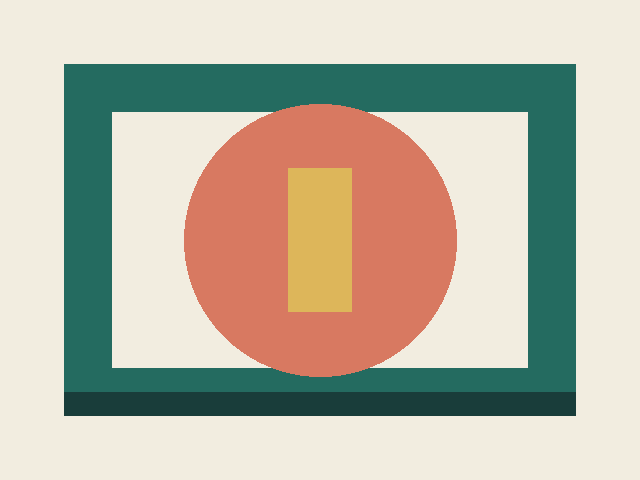
Use the frame sample below and request 5 colors. Compare the extracted color values with the visible image. Small accent areas can be missed or merged by sampling.
These are approximate dominant colors, not a perceptual palette or an accessibility check. Review the values in the design where you plan to use them.
Check the generated result before saving. Keep your original image, especially when changing transparency or format.
A LITTLE CONTEXT HELPS
Practical notes on formats, visual review, and working with image color. The latest published guides appear here automatically.
Use Image Palette as a starting point for reviewing photographed colors. Choose a representative image, connect swatches to visible product details, compare lighting, and turn supported…
Build a useful auto-parts comparison from matching photographs, clear identifiers and readable details. Review visible differences on a contact sheet, then verify compatibility through part numbers,…
Start with your listing destination’s accepted formats, then compare background appearance, product detail and actual file size. Follow a practical workflow for choosing PNG, JPEG or…
THE RIGHT TOOL FOR THE TASK
The three image tools process files in your browser. No image upload, account, or cloud storage is needed. Loading the website still makes normal page requests. A page reload clears the current workspace, so download the results you want to keep.
Check the file type and size first. Try a smaller PNG, JPEG, or WebP image, and keep your original. Browser decoding and memory limits vary. An error is not a processed result; adjust the source and try again.